Google Tag Manager (GTM) is a robust solution that allows marketers and website administrators to manage and implement tags seamlessly, eliminating the need for manual code modifications with every update. Tags consist of code snippets or tracking pixels that are embedded in a website to gather data and transmit it to external tools, including analytics platforms, advertising networks, and marketing automation systems.
To integrate Google Tag Manager (GTM) into a Next.js project is quite simple thanks to Vercel team who build a library for that.

Install next/third-parties library
We will need to install the next/third-parties library, which offers a collection of components within which we can find the Google Tag Manager component.
npm i @next/third-partiesImport Google Tag Manager
After successfully downloading the library, we can go ahead and import the GTM component, this needs to be done in the app/layout.tsx file.
import { GoogleTagManager } from '@next/third-parties/google' Get your GTM ID
If your GTM account is already created, you should be able to see this dashboard:

Here we can find the GTM ID on the top right side of the dashboard, for this tutorial I have created a test account. As you can see my ID is GTM-MXXNKV2B, copy the ID, and since this is not the only information, we need from the Tag Manager dashboard, we need to go to Admin.
Add the GTM Component
Now that you have your GTM ID you can pass it as prop to your component.
export default function RootLayout({
  children,
}: {
  children: React.ReactNode
}) {
  return (
    <html lang="en">
      <GoogleTagManager gtmId="YOUR-ID-HERE" />
      <body>{children}</body>
    </html>
  )
}
Add the <noscript> Tag
Let’s go back to the GTM portal and copy the tag shown in the second step.
Due to the tag being intended for traditional HTML, we need to update some attributes, let’s update the style for the iframe, so it ends up like this.
<noscript><iframe src="https://www.googletagmanager.com/ns.html?id=YOUR-ID-HERE"
height="0" width="0" style={{ display: "none", visibility: "hidden" }}></iframe></noscript>
Notice that both tags contain the GTM ID.
You can use the tool from Google to validate that everything worked.
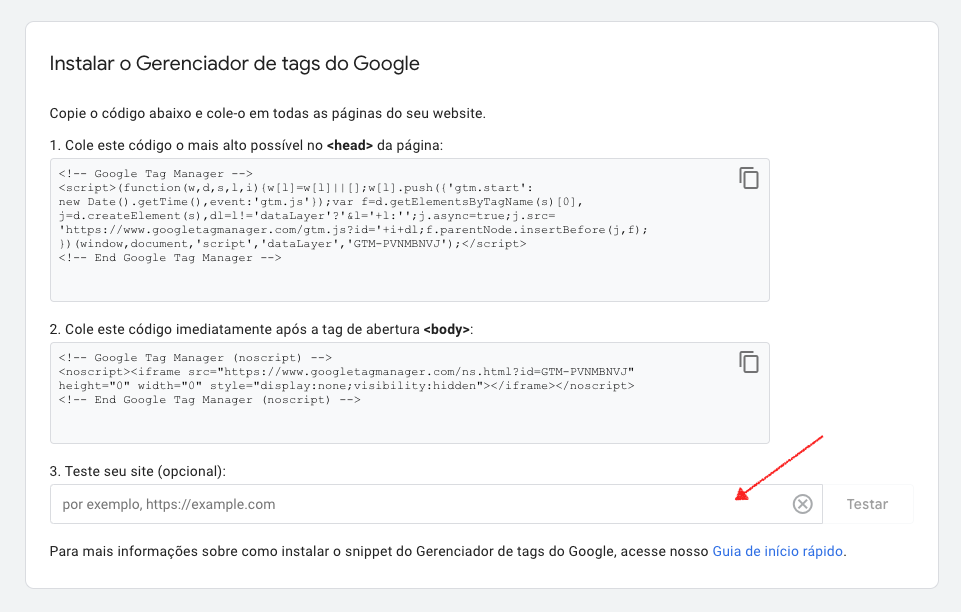
That is all folks! If everything went fine you should be able to see a green check mark.

If you need further help, check out this video https://www.youtube.com/watch?v=2WP_xdFcjok
Leave a Reply